
The Laboratory
Overview
The essential features of the circuits laboratory are described as follows:
- Engineering Paper. The engineering paper is used to create a circuit using a
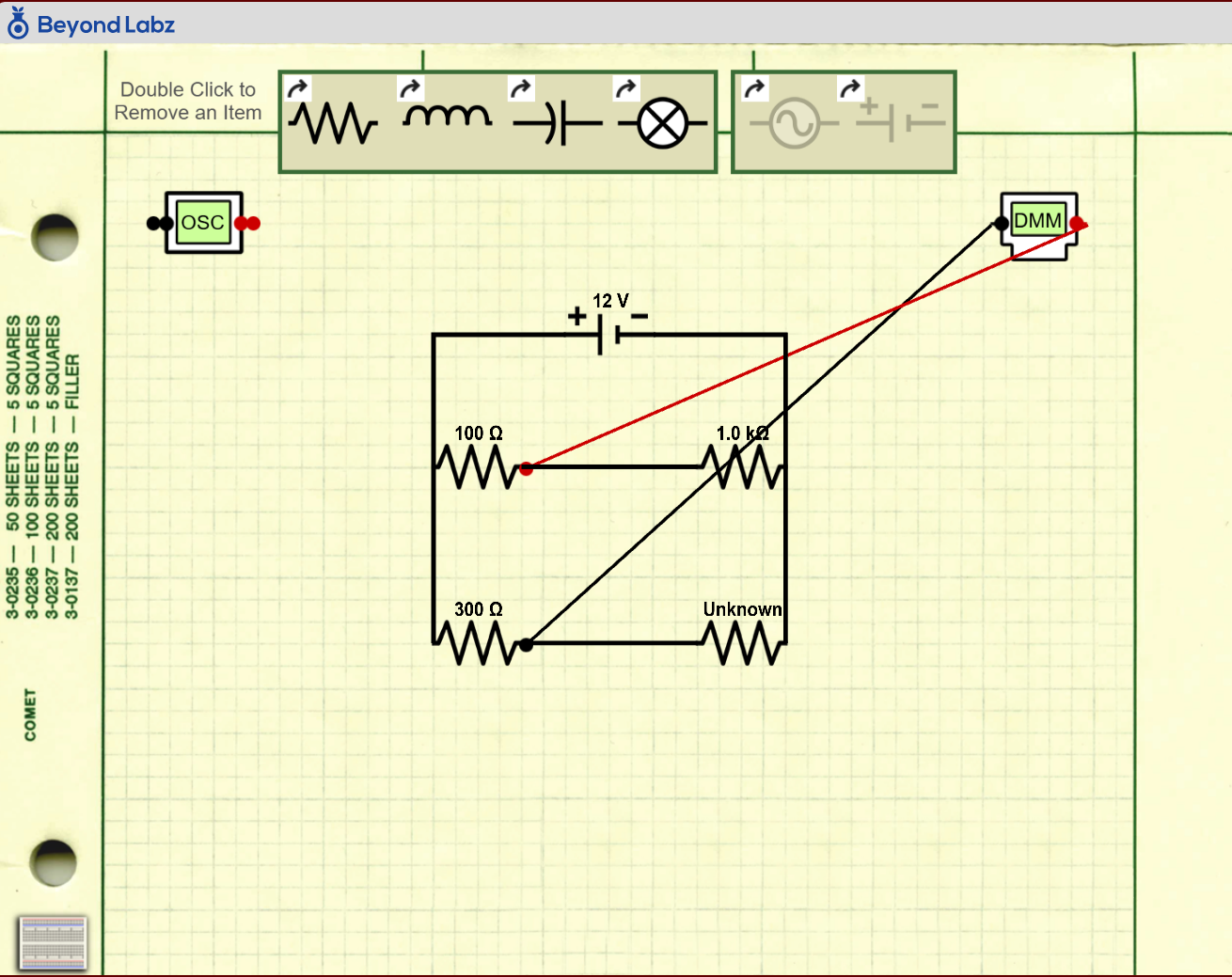 schematic representation. The symbolic components can be dragged from the top of the page and placed on the paper to create the circuit. Clicking on the blue ends of the components and dragging allows you to connect the components together.
 - Oscilloscope. The symbolic representation of the oscilloscope is located on the left side of the paper. You can click and drag the red and black leads to analyze various parts of the circuit on the engineering paper.
- Digital Multimeter. The symbolic representation of the digital multimeter is located on the right on the paper. You can click and drag the red and black leads to analyze various parts of the circuit on the engineering paper.
- Component Symbols. These two boxes contain the symbolic components for “drawing” the schematic on the engineering paper. Clicking on the small arrows will rotate the component.
- Breadboard. This is where you can actually build the circuit.
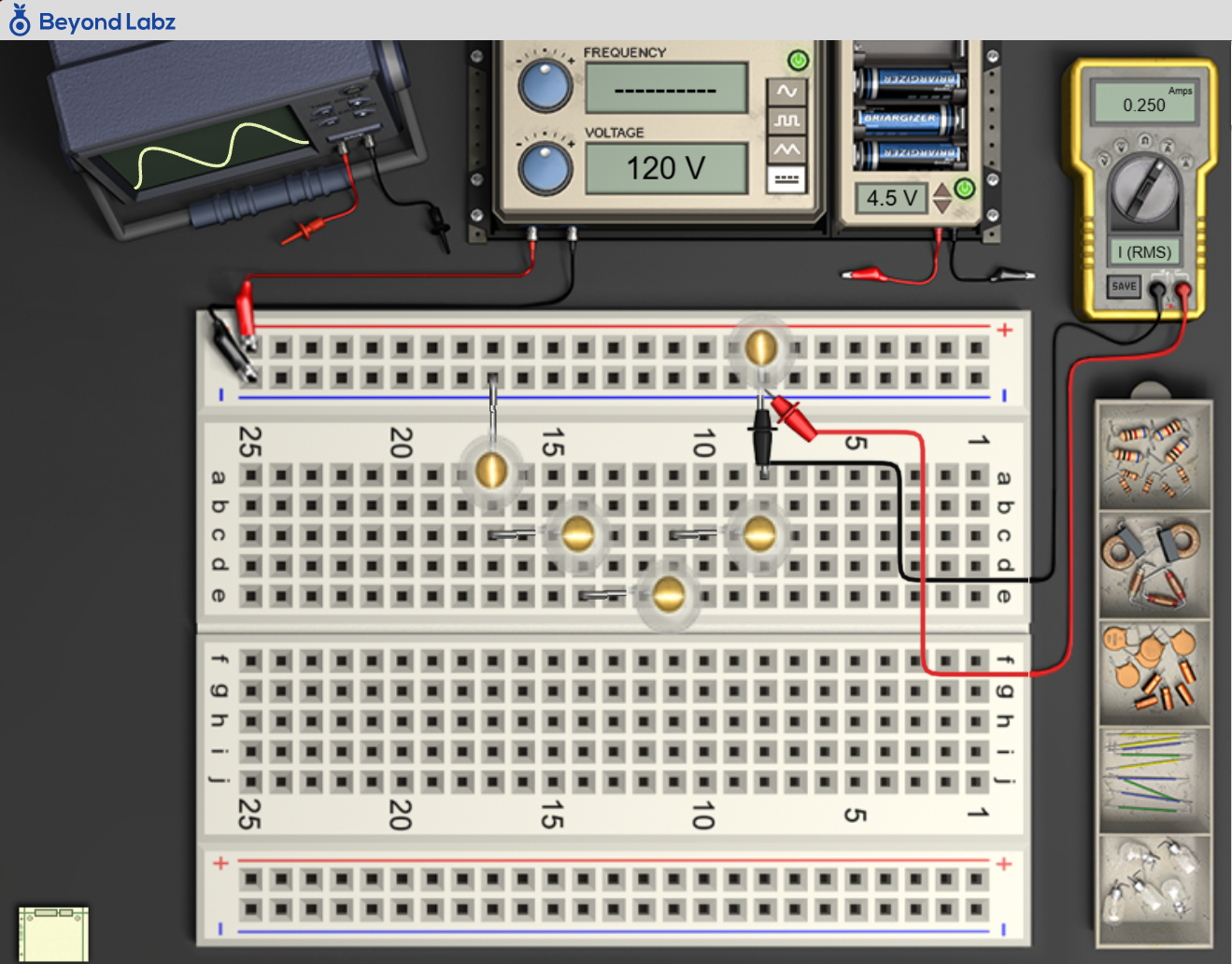 Components and wires are added to the breadboard by dragging them from the tray and placing them in the selected pin location. The voltage sources can only be added to the power strips located at the top and bottom of the breadboard.
 - Oscilloscope. The oscilloscope is used to measure the voltage as a function of time in the circuit. The oscilloscope window is visible in Live Data. The red and black leads can be dragged to the breadboard to probe a selected part of the circuit.
- Voltage Generator. This is the voltage or function generator which is used to supply AC voltages to the circuit of sine, square wave, or saw tooth wave forms. You can also apply a DC source. Change the frequency or voltage values in Live Data. The red and black leads can be dragged to the power strip on the breadboard to apply power to the circuit.
- Battery Source. The battery source allows you to choose from several types of batteries to apply a DC voltage to the circuit. The smallest battery is 1.5 V and the largest is 12 V. Use the arrows to select the different batteries. The red and black leads can be dragged to the power strip on the breadboard to apply power to the circuit.
- Digital Multimeter. The Digital Multimeter (DMM) is used to measure the RMS voltage (VRMS), DC voltage (VDC), resistance, RMS current (IRMS), and DC current (IDC) of a selected part of the circuit. The red and black leads can be dragged to the breadboard and attached to any of the components.
- Light bulbs, Wires, Capacitors, Inductors, and Resistors. These are the components that can be drag onto the breadboard. Be aware that they can have limited access to the locations on the board if other components are too large. Sometimes the order of placement matters if you are using a large
 number of components.
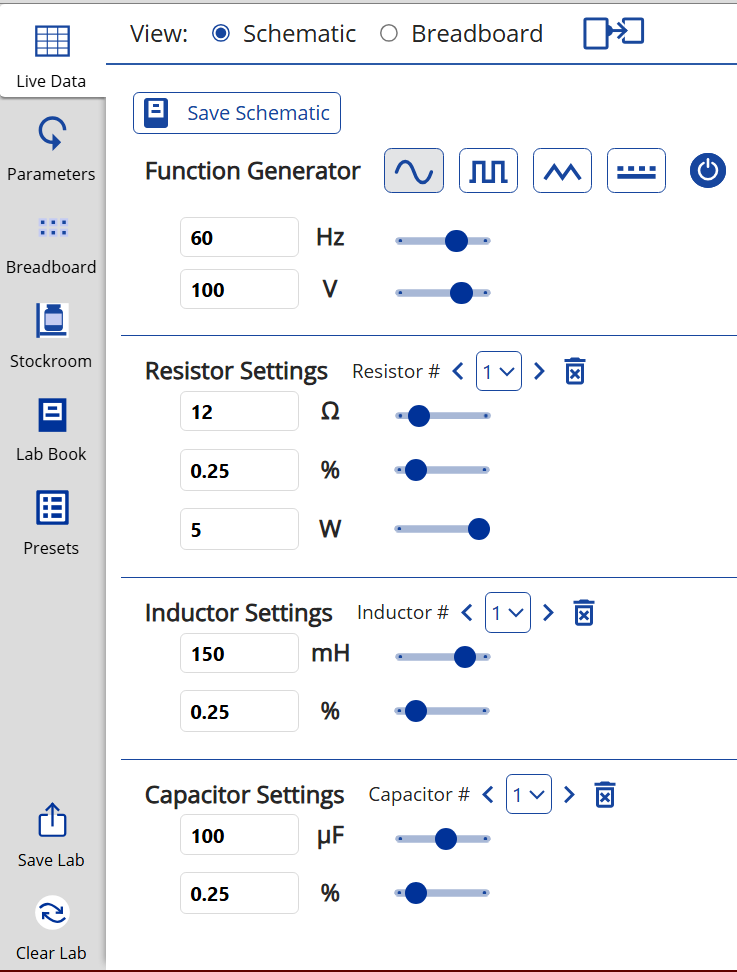
 - Live Data. Clicking on the live data tab displays to the user any
relevant data pertaining to instruments and components being used at the time. Users can click on the various buttons in the live data tab to save an image of the schematic, multimeter or oscilloscope to the Lab Book, manipulate the instruments, and adjust parameters. - Parameters. Properties of any component out on the breadboard or in the schematic can be adjusted in the menus.
- Breadboard. This allows you to view a non-editable image of the breadboard corresponding to the built schematic at any point. This view is available when you are in Schematic view.
- Schematic. This allows you to view a non-editable image of the schematic corresponding to whatever is built on the breadboard at any point.
- Stockroom. Clicking on the stockroom tab displays to the user to the available components of the stockroom. Electronic components and power supplies can be selected from the stockroom and placed on the
 breadboard or schematic.
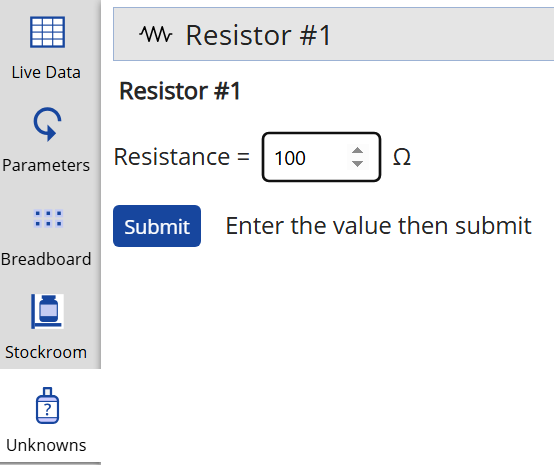
 - Unknowns. When instructors assign a component that has unknown resistance, capacitance or inductance, it will show up in this tab. Users can enter their calculated estimate of the unknown value and the actual value will also be revealed after clicking Submit. The user-entered estimate and actual values are recorded in the LabBook for the instructors to review.
- Lab Book. The lab book is used to record procedures and observations while performing experiments in the virtual laboratory. Data from the experiments can also be saved as images in the lab book. Any data saved in the lab book is immutable and cannot be changed. All entires are timestamped. The lab book can also be exported as a PDF.
- Presets. The presets tab has two sections. The first, Lab Presets, are presets created by Beyond Labz that are useful starting points to show the range of what can be done in the lab and are good starting points. The second, My Saved Labs, will contain a list of the user's saved lab states.
- Save Lab. Clicking this button will add the lab in its current state to the user's saved labs list. The list of saved labs can be access from the Presets tab.